Every morning I wake up to a personalized intelligence briefing on my phone.
It covers AI, crypto, startups, investing, world news, and a dozen other topics I care about, with sources and takeaways.
No apps to open.
No feeds to scroll.
It just shows up in my Telegram.
Here’s what it looks like (Redacted the weather report since it has my location):
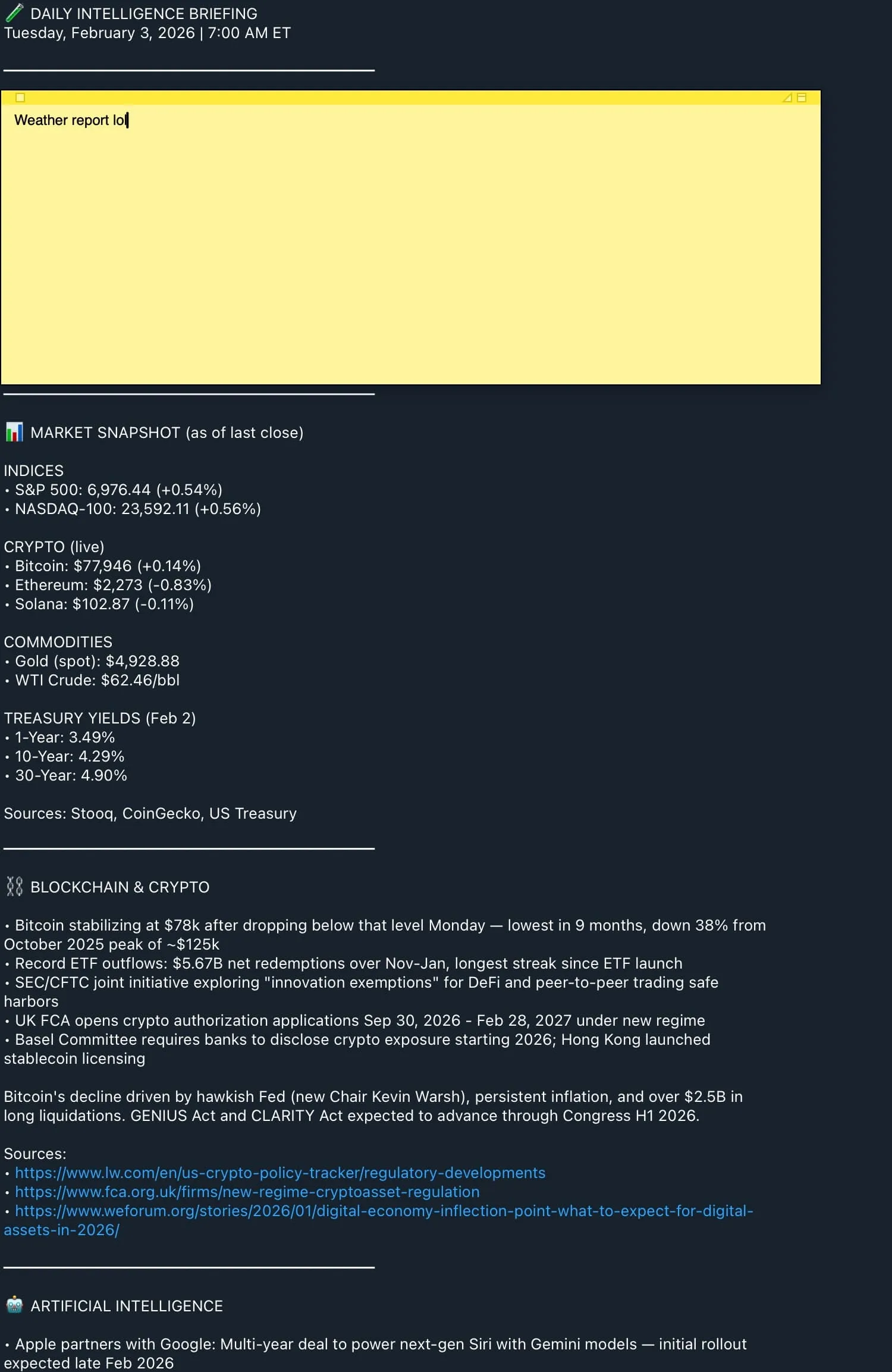
Here’s how I set it up using OpenClaw and a prompt from my prompt library.
What is OpenClaw?
OpenClaw is an open-source AI agent that runs locally on your machine and connects to messaging platforms like Telegram and Slack.
What I care about: it can run tasks on a schedule (cron jobs, heartbeats, automated workflows) and deliver the output to whatever messaging app you already use.
That’s what makes it perfect for a daily briefing.
The prompt
I’ve had a personal intelligence briefing prompt in my prompt library for a while.
It’s designed to generate a report similar to a presidential daily briefing, but tailored to your own interests.
The prompt covers:
- Blockchain / crypto, AI, startups, SaaS
- Personal finance, investing, real estate
- Programming, tech, trends
- World news, business, economics
- Psychology, history
For each topic, it generates 3-5 bullet points with highlights, a brief paragraph of context, and links to sources.
It also includes a “Trends to Watch” section and “Key Takeaways” at the end.
I had been running this manually in ChatGPT or Claude every morning.
It worked, but it required me to open a browser, paste the prompt, wait, and read it there.
OpenClaw automates the entire thing.
Setting up OpenClaw
Prerequisites
You’ll need:
- Node.js 22+ installed
- An Anthropic API key (I’m using Claude Opus 4.5 as the model)
- A Telegram account
Install
npm install -g openclaw@latestThen run the onboarding wizard:
openclaw onboardThe wizard walks you through:
- Model selection: I’m using
anthropic/claude-opus-4-5as the primary model - Authentication: enter your Anthropic API key
- Gateway config: default port is 18789
- Channel provider: choose Telegram
Connecting web search tools
Without web search, the model is stuck on training data.
Web search is what lets your report pull from live sources every morning.
OpenClaw supports several web search providers out of the box.
I’d recommend setting up all three:
- Brave Search: the default. Returns structured results with titles, URLs, and snippets. Free tier gives you 2,000 requests/month.
- Perplexity Sonar: returns AI-synthesized answers with citations from live web search. Good for summarized context on complex topics.
- Exa: a search engine built for AI. Tends to surface higher-quality sources than keyword search.
Set the API keys as environment variables in ~/.openclaw/.env:
BRAVE_API_KEY=your_brave_key
PERPLEXITY_API_KEY=your_perplexity_key
EXA_API_KEY=your_exa_key
The agent picks which provider to use based on the query: Brave for general search, Perplexity for synthesized answers, Exa for deeper sources.
Having all three gives it more to work with, and the reports are noticeably better with these enabled vs. without.
Connecting Telegram
- Search for
@BotFatherin Telegram - Send
/newbotand follow the prompts - Grab the token it gives you
- Enter the token during the OpenClaw setup
Setting up the daily briefing
OpenClaw has a built-in cron system that can run prompts on a schedule and deliver the output to your messaging app.
Adding the cron job
openclaw cron add \
  --name "Daily Intel Report" \
  --cron "0 7 * * *" \
  --message "Create a personalized intelligence report, similar to a
    presidential daily briefing, tailored to these interests:
    blockchain/crypto, AI, startups, SaaS, traveling, personal finance,
    investing, programming, real estate, investment themes, trends,
    world news, tech, business, economics, psychology, history.
    For each topic: 3-5 bullet points, a brief paragraph of context,
    and links to 2-3 reputable sources. Include a Trends to Watch
    section and Key Takeaways at the end." \
  --deliver \
  --channel telegram \
  --to "YOUR_CHAT_ID"
Replace YOUR_CHAT_ID with your Telegram chat ID.
The full version of the prompt I use is in my prompt library.
I’d start with that and trim from there.
That’s it.
Every morning at 7am, the agent wakes up, pulls the latest news, and sends a report to your Telegram.
Customizing the schedule
The cron expression 0 7 * * * means “every day at 7am.” Adjust to whatever works for you:
0 6 * * 1-5: weekdays at 6am0 8 * * *: every day at 8am0 7,18 * * *: twice daily, 7am and 6pm
The timezone defaults to your machine’s local timezone.
Tips and things I’ve learned
1) Customize the interests list.
The prompt I shared has my interests baked in.
Swap them out for yours.
The more specific you are, the better the report.
“AI” is fine, but “AI agents and autonomous coding tools” will get you more targeted results.
2) Keep an eye on API costs.
Opus 4.5 is not a cheap model.
Running it daily via the Anthropic API adds up.
Each report with web search tool calls can cost a few dollars depending on output length.
Worth it for me, but something to keep in mind.
You can always swap to a cheaper model like Sonnet if you want to bring costs down.
3) Iterate on the prompt.
Start with the base prompt, read a few reports, then tune it.
I’ve been adding and removing topics based on what I actually read vs. what I skip.
Since it’s a cron job, you set it once and tweak as needed.
4) Watch for the heartbeat bug.
There’s a known issue where the heartbeat prompt can get appended to cron events, causing the agent to respond with HEARTBEAT_OK instead of running your report.
If your reports stop showing up, check whether you’re hitting this.
The fix is to use isolated session mode (which is the default for cron jobs with --deliver).
A note on security
You’re giving an autonomous agent access to your messaging accounts, API keys, and your local filesystem.
It can browse the web, run commands, and send messages on your behalf.
A few things to keep in mind:
- You don’t want this living on your primary laptop alongside your browser sessions, credentials, and personal files. Run it on a dedicated machine: a cheap VPS, a Raspberry Pi, or a Mac Mini. If something goes wrong, the blast radius is limited to a box with nothing else on it. Bonus: a dedicated always-on machine means your briefings won’t miss a day because your laptop was asleep.
- Your model provider keys are stored locally. Secure the machine they’re on.
- OpenClaw has full access to send and receive messages on whatever channel you connect. Don’t run it on a shared machine.
- Cron jobs run without human approval. A bad prompt or a model hallucination could send something unexpected to your Telegram.
- The project moves fast and it’s not audited. Review what you’re running, especially after updates.
If any of that gives you pause, run the prompt manually in Claude or ChatGPT for a while before automating it.
Worth watching: Cloudflare’s MoltWorker
If you don’t want to manage your own hardware, Cloudflare released MoltWorker, an open-source project that runs OpenClaw on Cloudflare’s Developer Platform instead of a local machine.
The interesting part is the architecture.
MoltWorker runs the agent inside a Cloudflare Sandbox, an isolated micro-VM.
If the agent goes rogue, it’s trapped in a container that gets destroyed when the task finishes.
No access to your local network or files.
It uses Cloudflare R2 for persistent storage, Cloudflare Access for auth on the admin UI, and their Browser Rendering for web browsing.
All for roughly $5/month on the Workers paid plan.
Cloudflare has labeled it a proof-of-concept, not a product.
Worth a look if you want an always-on agent without babysitting a server.
I’m keeping an eye on it.
Why this is worth it
I used to start my mornings scrolling through Twitter, Hacker News, Reddit, and a handful of newsletters.
Now I get a single briefing that covers everything I care about, waiting for me when I wake up.
Setup is quick: install OpenClaw, connect Telegram, add the cron job.
And since it’s open source and runs locally, you own the entire pipeline.
If you want to try the prompt on its own first, grab it from my prompt library and run it manually in ChatGPT or Claude.
Once you’re happy with the output, wire it up with OpenClaw and automate it.